
Why Digital Planner Hyperlinks Stop Working in GoodNotes
Hyperlinked planners break in predictable ways. How to diagnose yours, and what to check before you buy.
Published August 1, 2026
You bought a hyperlinked digital planner. The tabs are right there on every page. You tap one in GoodNotes and nothing happens.
This is a well-documented failure. Across roughly 30,000 buyer reviews of the biggest digital-download shops, broken navigation shows up again and again, usually from people who like the planner otherwise:
“The planner looks great, but the hyperlinks don’t work in goodnotes”
“The planner is pretty but many of the main links do not work which makes using it frustrating.”
“This item is not compatible with Kindle scribe E013 – Incompatible Elements for Kindle Format Conversion error received upon import”
There are four realistic causes. Work through them in order.
Cause 1: The PDF was flattened
PDF hyperlinks live in an annotation layer that sits on top of the visible page. That layer is fragile. It gets discarded when a file is:
- printed to PDF rather than exported as one
- exported from an image editor
- re-saved through certain compression or “optimize” tools
- converted between formats at any point
The pages look pixel-identical afterwards, because the visible tab graphics are just artwork. Only the clickable layer is gone. This is why the problem is so confusing — nothing looks wrong.
How to confirm: open the same PDF in a desktop browser. Chrome and Safari both honor internal PDF links. If the tabs do nothing there either, the file itself is flattened and no app will fix it. That is a seller-side problem.
Cause 2: The file was imported the wrong way
GoodNotes treats an imported PDF differently depending on how it arrives.
- Correct: open GoodNotes, then use Import or “Open in GoodNotes” from the Files app. The PDF stays a PDF, links intact.
- Incorrect: dragging pages into an existing notebook, or importing as images. Page images have no link layer at all.
How to confirm: re-import the original file cleanly into a brand-new GoodNotes document and test again before concluding anything is broken.
Cause 3: Your app or device doesn’t support internal links
Support varies more than sellers admit:
- GoodNotes, Notability — internal PDF links generally work
- Some Android PDF readers — inconsistent, often ignore internal destinations
- Kindle Scribe — converts on import; internal links do not survive, and some planners fail conversion entirely
- reMarkable — limited and version-dependent
A listing that advertises “works on any device” is overstating it. A planner built on PDF links is really built for two or three apps.
How to confirm: test the same file in GoodNotes on an iPad. If links work there but not on your device, the file is fine and the device is the limit.
Cause 4: You’re tapping in the wrong place
Less common, but worth ruling out. Link hotspots are sometimes smaller than the graphic suggests, and in GoodNotes you must be in reading mode rather than an active drawing tool — otherwise your tap is interpreted as a pen stroke.
How to confirm: switch to the hand or pointer tool and tap the center of the tab.
The 30-second test to run on day one
Whatever you buy, do this immediately, while a refund is still easy:
- Open the file in the app you actually plan to use.
- Tap three different tabs, from three different pages.
- Tap a link that jumps backward, not just forward.
- If any of the three fails, treat the whole navigation as unreliable and contact the seller now rather than in November.
Most people discover the problem months later, well past the point where a refund conversation is comfortable.
Why this keeps happening
A hyperlinked PDF planner is a stack of dependencies: the PDF keeps its annotation layer, your app honors internal destinations, your device does not convert the file on import, and the import path preserves everything. Break any one and the product silently degrades into a stack of pictures.
The alternative is a format where navigation is not bolted on. In a self-contained HTML dashboard, the tabs are part of the document rather than an overlay — there is no separate layer to lose, no import step to strip anything, and no app-specific support to check. It opens in the browser already installed on whatever you are holding.
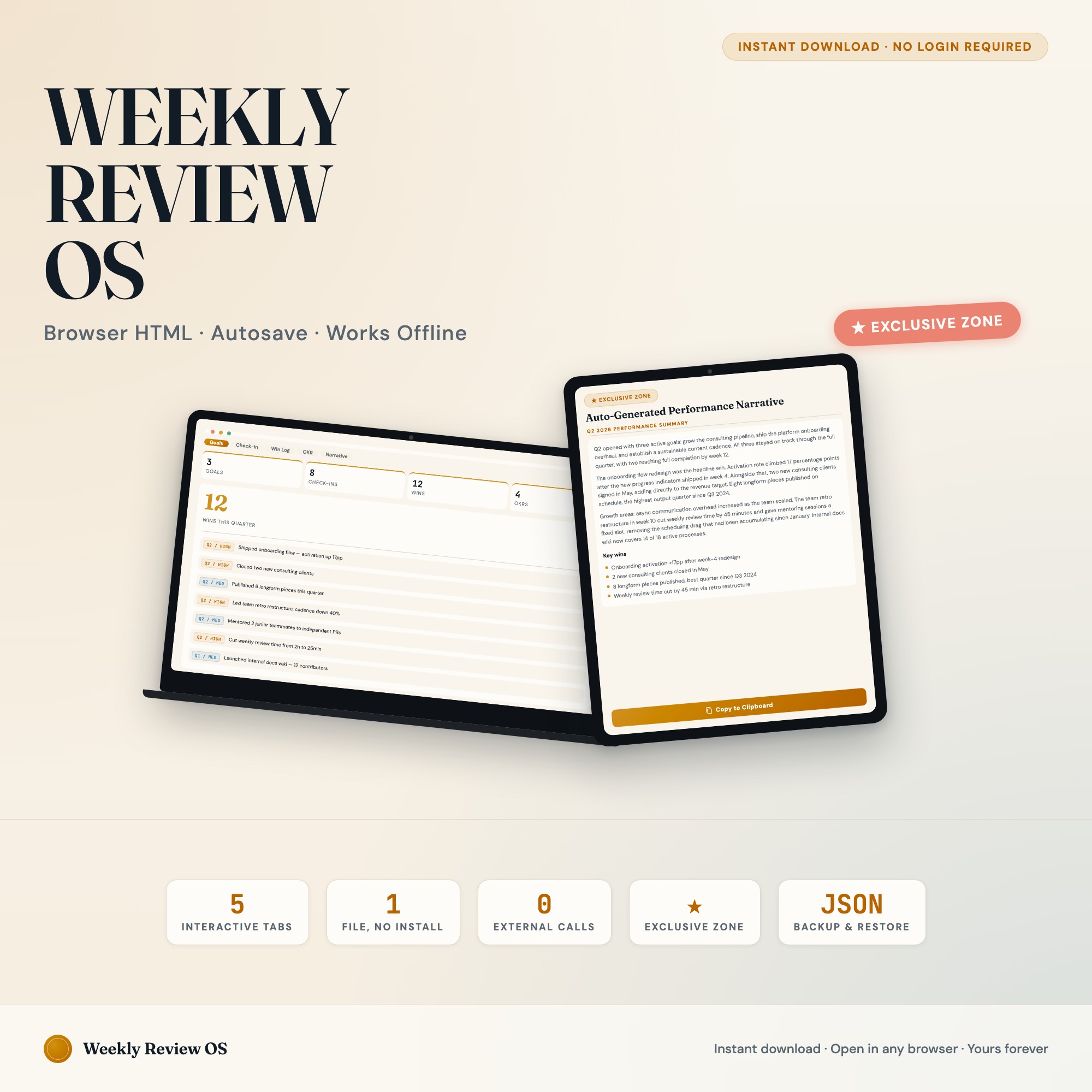
Our Daily Time Block Dashboard and Weekly Review Productivity OS work this way. Tabs are structural, and your entries save on the device you opened them on.
The honest trade: an HTML dashboard is not something you handwrite on with an Apple Pencil. If pen-on-page is the point, a PDF planner in GoodNotes is the right tool and you should test its links on day one. If you mostly type, tap, and want numbers that calculate themselves, the PDF link layer is a fragile way to get there.
If your links are already broken
- Test the original file in a desktop browser to establish whether it is flattened.
- If it fails there, message the seller: “the internal links are not present in the PDF — the file appears to have been flattened on export.” That is specific enough to act on.
- If it works in the browser but not your app, the file is fine; the limitation is the app or device.
- If the seller cannot supply a working file, a planner sold on its navigation that has no navigation is not as described.
Frequently asked questions
- Why don't my digital planner hyperlinks work in GoodNotes?
- The most common reason is that the PDF was flattened somewhere between the seller and your tablet. Printing to PDF, exporting from an image editor, or re-saving through some apps discards the link layer while leaving the pages looking identical. The tabs are still visible, they simply are not links anymore.
- Do hyperlinks work in every note-taking app?
- No. GoodNotes and Notability support internal PDF links reasonably well. Support is inconsistent elsewhere — some Android readers, some browser PDF viewers, and E Ink devices like Kindle Scribe and reMarkable either ignore internal links or convert the file on import and drop them.
- How can I test whether a planner's links work before committing to a whole year?
- Open the PDF in your target app and tap three different tabs from three different pages. If any one fails, the whole navigation system is unreliable. Do this on the day you buy, while a refund is still straightforward.
- Is there a planner format that cannot lose its links?
- A self-contained HTML dashboard keeps its navigation because the navigation is part of the file itself rather than a PDF annotation layer. It opens in any browser on any device, and there is no import step that can strip anything out.
Ready-made dashboards
Skip setup — grab an interactive dashboard built for this exact workflow.

ListingResearchOS Shop
All dashboards — one-time purchase, yours forever
Single HTML files. No subscriptions. No login. Works offline in any browser.
Browse all dashboards →